Photos fail to upload
In DigiMEP, there are few reasons why a photo (or several) fail to upload. Here are some of the most common reasons our technical support agents see everyday.
Poor Cell Service
As you take photos in DigiMEP, these photos will try to upload immediately in order to prevent long upload times when the entire form is finished and uploaded all at once. If your photos won't populate the fields or if your form fails to upload completely, checking your internet connection is a fantastic place to start troubleshooting. To quickly check internet connectivity, open a web browser on your device and type in "speed test" into your search bar. You will be presented with an option to "Run Speed Test"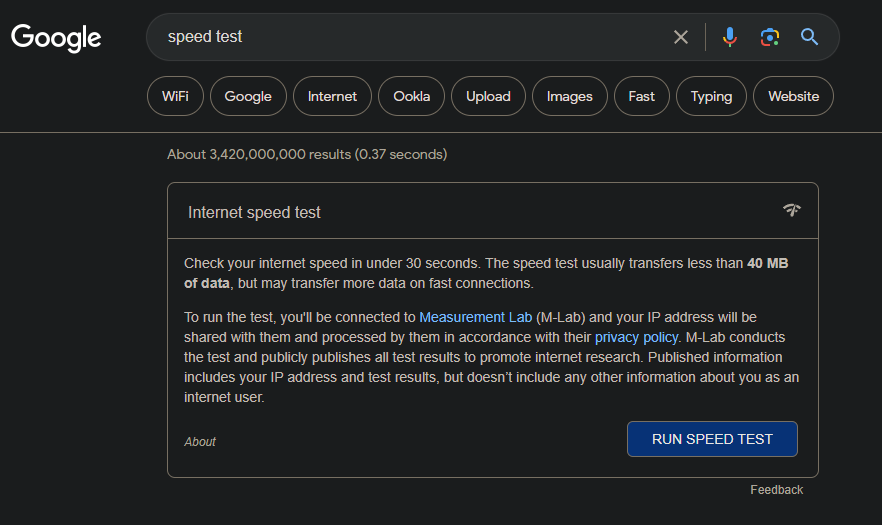
Tap the "Run Speed Test" button and wait for about 20-30 seconds. A pop up menu like this one will appear, displaying your current download and upload speeds.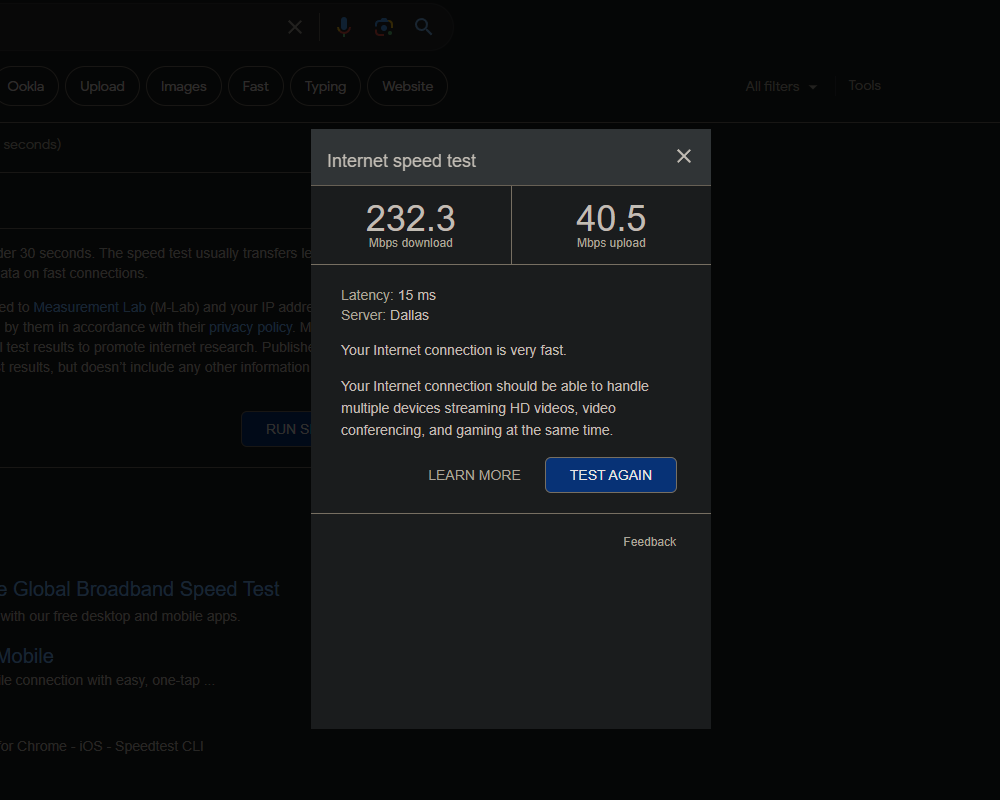
This menu may look confusing, however we are only interested in the top 2 numbers displayed above Mbps Download and Mbps Upload. Depending on your internet connectivity, your download and upload speeds will vary greatly. For UPLOADING images, we are really only concerned with the upload speed. In our personal tests, we begin to see upload and image displaying failures when upload speed is below 1.5 Mbps. If you have upload speeds below 1.5 Mbps, you should turn your device on airplane mode. This will force your device to wait to upload photos. You can then disable airplane mode and upload your entire form once you reach an area with better connection. ALWAYS save as a draft in order to save your progress on your form!!!
Photos are too Large.
High quality photos can take a lot of space and take seemingly forever to upload. On the IOS (Iphone) platform specifically, users encounter uploading errors due to file size. This is because of the IOS "Live Photo" functionality. "Live Photo" is enabled by default on all iphones. See our article on how to disable this feature here: https://digimep.zohodesk.com/portal/en/kb/articles/how-to-turn-off-live-photos-from-iphone
Check your Drafts!
Often we see users starting completely new surveys without realizing it. This leads to technicians expecting to see their photos, but are only met with a new, blank form. To check your drafts, navigate to the survey you wish to upload and select the tab on the upper right of the screen that says "Drafts." Here you can find your saved copies of the survey you previously worked on, pictures included.
Related Articles
Common Issues Guide
Here are some common issues and quick tips on how to solve them Photos Will Not Upload -Check network connectivity. Run a speed test on your device and make sure your upload speeds are greater than 2 MBPS. If less than 2 MBPS, finish survey, save as ...How to turn off Live Photos from Iphone
IOS devices have a camera feature known as "Live Photos" that comes as standard. While fantastic for everyday use, in the specific application of uploading large amounts of photos, we have seen increasingly long upload times and even failed uploads. ...New User Guide
Welcome to the DigiMEP team! We here at Internet of Team are thrilled to have a rapidly growing community of talented technicians. With all of our new found members, we get an abundance of questions on how it all works. To get you started, here is a ...